IPTV Television: What It's Actually Like to Watch
IPTV television means your channels arrive over your internet connection instead of a satellite dish, antenna, or cable line, that part gets covered elsewhere. What matters once you actually sit down in front of your TV is a different question entirely: what does watching it actually look like, which device puts it on your screen, and how do you navigate it with a remote instead of a mouse or touchscreen.
This article stays squarely on that viewing experience: getting IPTV onto your actual television, what changes about picture quality on a big screen, how program guide navigation works with a remote, and how to think about multiple TVs sharing one subscription.
Getting IPTV Onto Your TV Screen
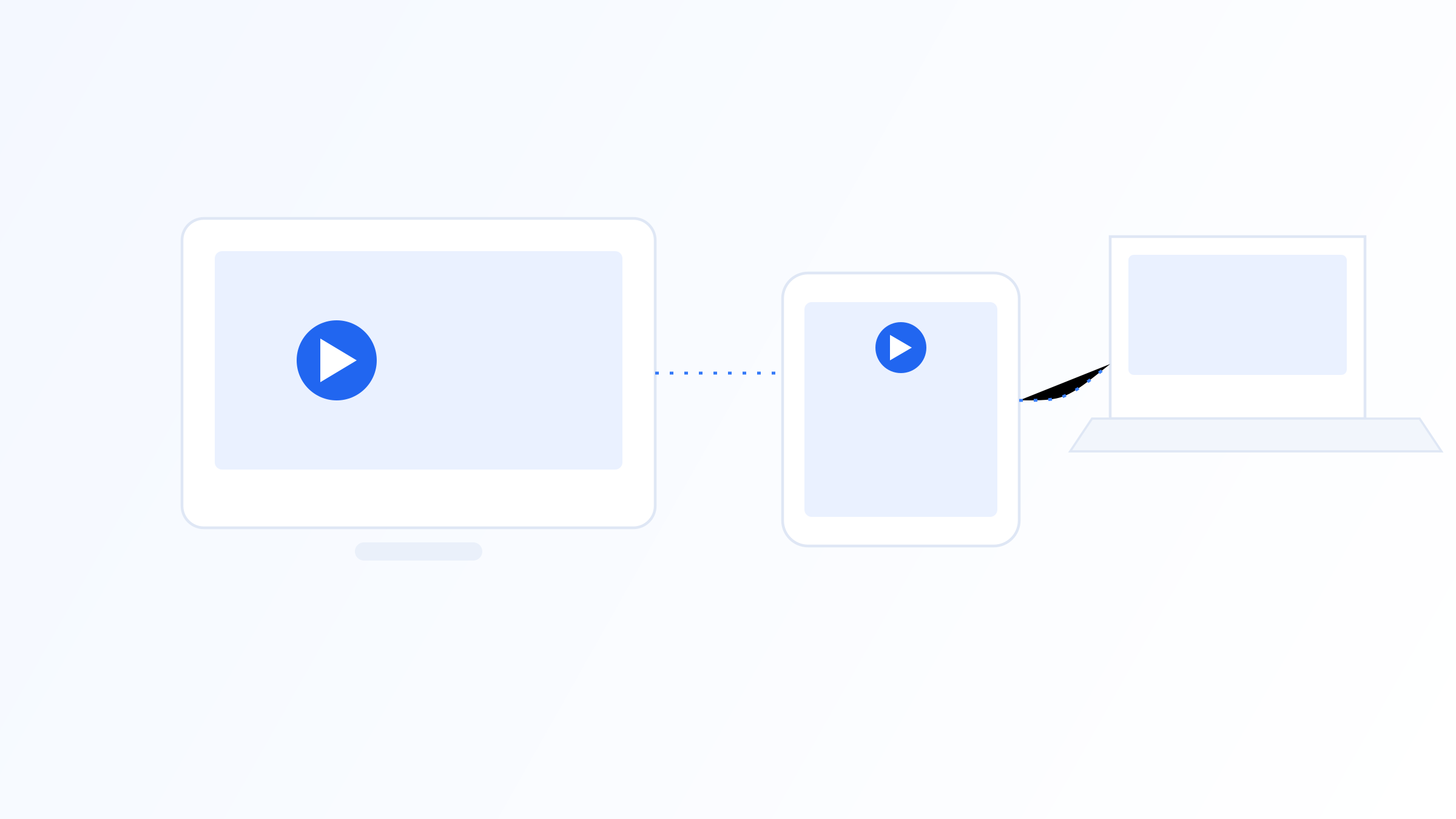
There are three common ways IPTV ends up on your television, and each changes the viewing experience slightly. A smart TV with a built-in player app runs everything natively on the television itself, with no extra hardware needed beyond the TV you already own. A dedicated streaming box or stick, connected over HDMI, adds a small external device that runs the app and outputs to the TV, useful when your TV's built-in app store doesn't support the player you want to use.
A third option is casting or mirroring from a phone or tablet, projecting the app's display onto the TV rather than running the app on the TV itself. This tends to work in a pinch, but generally offers a rougher experience than a native app, since it depends on the mirroring connection staying stable and often can't be controlled directly with the TV remote.
Which option makes sense depends mostly on what your TV already supports. A newer smart TV with a capable app store often needs nothing extra, while an older TV without smart features, or one whose app store is limited, usually benefits from an external box that handles the player independently of the TV's own software.
Navigating Channels and the Guide With a Remote
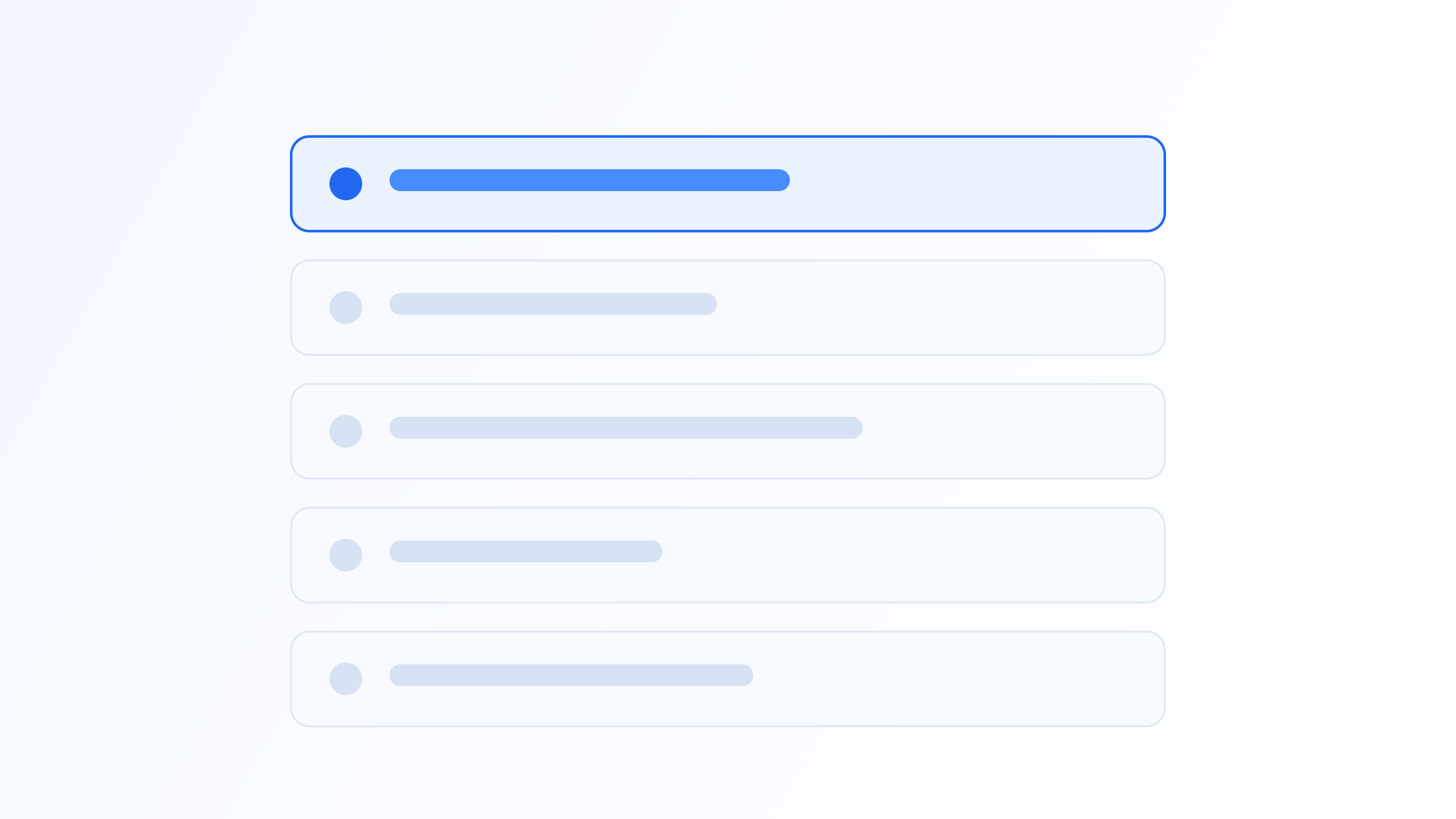
Watching IPTV on a TV changes how you interact with the channel list and program guide compared to using the same service on a phone. Instead of tapping and scrolling with a finger, you're moving through a grid using directional buttons on a remote, which changes how a well-designed player app lays things out: larger text, clearer highlighting of the currently selected item, and fewer nested menus than a touch-first phone interface might use.
A program guide that works well on a TV typically shows a grid of channels down one side and a scrolling timeline of programming across the top, letting you see what's airing now and what's coming up without leaving the guide screen. This is a deliberately different layout from a phone app's guide, which often shows one channel's schedule at a time due to limited screen space.
Remote-based navigation also means shortcuts matter more on a TV than on a touchscreen. Favoriting frequently watched channels, using number-entry for direct channel access where supported, and organizing categories sensibly all have a bigger impact on day-to-day convenience on a TV than they do on a phone, simply because moving through a grid with a directional pad is slower than tapping directly on a screen.
Picture Quality on a Big Screen
A stream that looks perfectly fine on a phone screen can reveal compression artifacts or softness on a large television, simply because flaws that are too small to notice on a five-inch display become obvious at fifty-five inches or larger. This makes bitrate and resolution matter more, not less, once you move from phone-sized viewing to a TV.
HDR support is another detail that shows up specifically in TV viewing and rarely matters on a phone. Whether a player app and your specific TV both support the HDR format used by a given stream affects color range and contrast noticeably on a capable television, though the source stream needs to actually be encoded with HDR data for it to matter at all.
Viewing distance also plays a role that's easy to overlook. A stream that looks slightly soft up close on a phone might look completely fine on a TV viewed from across a room, since the effective pixel density as perceived by your eye changes with distance, which is part of why picture quality complaints about the same stream can vary so much depending on how and where someone is actually watching it.
Multiple TVs and Shared Subscriptions
Households with more than one TV often want to know whether one subscription can cover all of them, and the practical answer depends on how many simultaneous connections your subscription includes, not on how many TVs you own. A subscription with two connections supports two TVs streaming at the same time; adding a third active stream typically disconnects one of the others rather than allowing all three simultaneously.
Setting up multiple TVs is otherwise straightforward: the same credentials or playlist can generally be entered into a player app on each television independently, whether that's a native smart TV app, a box connected to each TV, or a mix of both across different rooms. There's no need for identical hardware in every room, since the player app, not the device brand, is what determines the experience on each screen.
It's worth checking your subscription's connection limit against your household's actual viewing habits, particularly during shared moments like a live sports event when more than one TV might want the same channel at once, since that's exactly when hitting a connection limit becomes noticeable rather than a minor inconvenience.
Sound Systems and Voice Remotes
Audio is easy to overlook but affects the TV viewing experience just as much as picture quality. Most IPTV player apps pass audio straight through to whatever your TV or connected sound system is already using, whether that's the TV's built-in speakers, a soundbar, or a full home theater setup connected over HDMI ARC or optical audio. Multi-channel surround sound support depends on both the source stream including that audio track and your player app passing it through correctly, rather than being something the app itself generates.
Voice remotes and voice search, common on many modern smart TVs and streaming boxes, can also make channel and guide navigation noticeably faster once supported by your player app, letting you jump to a channel by name instead of scrolling through a full grid. Not every IPTV player app supports voice input even when the underlying remote does, so it's worth checking this specifically if a fast, hands-off search experience matters to you.
Choosing the Right Device for Your Setup
A smart TV app makes sense when your TV already supports a capable player and you'd rather avoid extra hardware and cabling. It's the simplest option when it's available, since there's nothing extra to set up beyond the TV itself.
A dedicated IPTV box tends to make more sense for an older TV, a TV with a limited app store, or a household that wants more consistent performance and features than a built-in smart TV app reliably offers, since a purpose-built box is generally more powerful than the processor built into a mid-range television. It's an extra device and an HDMI cable, but the tradeoff is often a smoother, more consistent experience, especially when navigating a large channel grid or switching quickly between live and on-demand content.
For most households, the right choice is whichever option gets you a stable, comfortable viewing experience without adding unnecessary complexity: try your TV's built-in app first if it has one, and only add a dedicated box if the built-in option turns out to be limited or unreliable in practice.
Watching IPTV television is ultimately about the screen in your living room: which device gets the picture there, how comfortably you can navigate channels and the program guide with a remote, how the picture actually looks at TV size rather than phone size, and whether your subscription's connection limit matches how many TVs your household actually uses. Getting those details right matters more to the daily experience than any underlying technical explanation of how the video reaches your home in the first place.
Quick FAQ
Can I use IPTV on a Smart TV without a separate box?
Often yes, if your smart TV's app store supports a compatible player app. If it doesn't, or if the built-in option feels limited, a dedicated streaming box or stick connected over HDMI is the usual alternative.
Does IPTV picture quality look different on a TV compared to a phone?
Yes. Compression artifacts and softness that are barely noticeable on a small phone screen can become more visible on a large television, which makes source bitrate and resolution matter more once you're watching on a big screen.
Can multiple TVs in my house use the same IPTV subscription at once?
That depends on how many simultaneous connections your subscription includes, not how many TVs you own. A two-connection subscription supports two TVs streaming at once; a third active stream typically disconnects one of the first two.
What's the best device for watching IPTV on a TV?
A capable smart TV app is the simplest option when your TV supports one. A dedicated IPTV box is generally the better choice for an older TV, a limited app store, or when you want more consistent performance than a built-in app reliably provides.
Ready to set up your own IPTV player?
View Pricing PlansReminder: use only legally licensed playlists and content sources. See our Legal & Responsible Use FAQ.