HDMI and IPTV: A Beginner's Guide
HDMI and IPTV often come up together, but they solve different parts of a home entertainment setup. HDMI is a cable and connector standard for transmitting high-definition video and audio between devices, while IPTV is a method of delivering television content over an internet connection rather than traditional broadcast or cable infrastructure. Understanding where each one fits helps clarify a common source of confusion for anyone setting up IPTV for the first time.
This guide covers the general role HDMI plays in a typical IPTV setup, from connecting a streaming device to your TV, to the less common scenario of using HDMI as a source for generating an IPTV stream in the first place.
What HDMI Actually Does
HDMI, short for High-Definition Multimedia Interface, is a standard for transmitting uncompressed digital video and audio over a single cable. It's the connection used between countless consumer devices, Blu-ray players, game consoles, cable boxes, and streaming devices, and the television or monitor displaying their output. HDMI itself doesn't involve any internet connectivity, it's a local, direct connection between two nearby devices.
This matters for IPTV because the two technologies operate at completely different points in the chain. IPTV describes how video content travels from a source, over the internet, to a receiving device. HDMI describes how that content, once received and processed, gets displayed on your screen. They're complementary, not competing, technologies.
HDMI has gone through several versions since its introduction, each adding support for higher resolutions, higher frame rates, and additional features like HDR and enhanced audio formats. For most IPTV viewing purposes, these version differences mostly matter around 4K support specifically, since earlier HDMI versions can struggle to carry a full 4K signal at higher frame rates without some compression or limitation.
The Most Common Role: Connecting Your Streaming Device
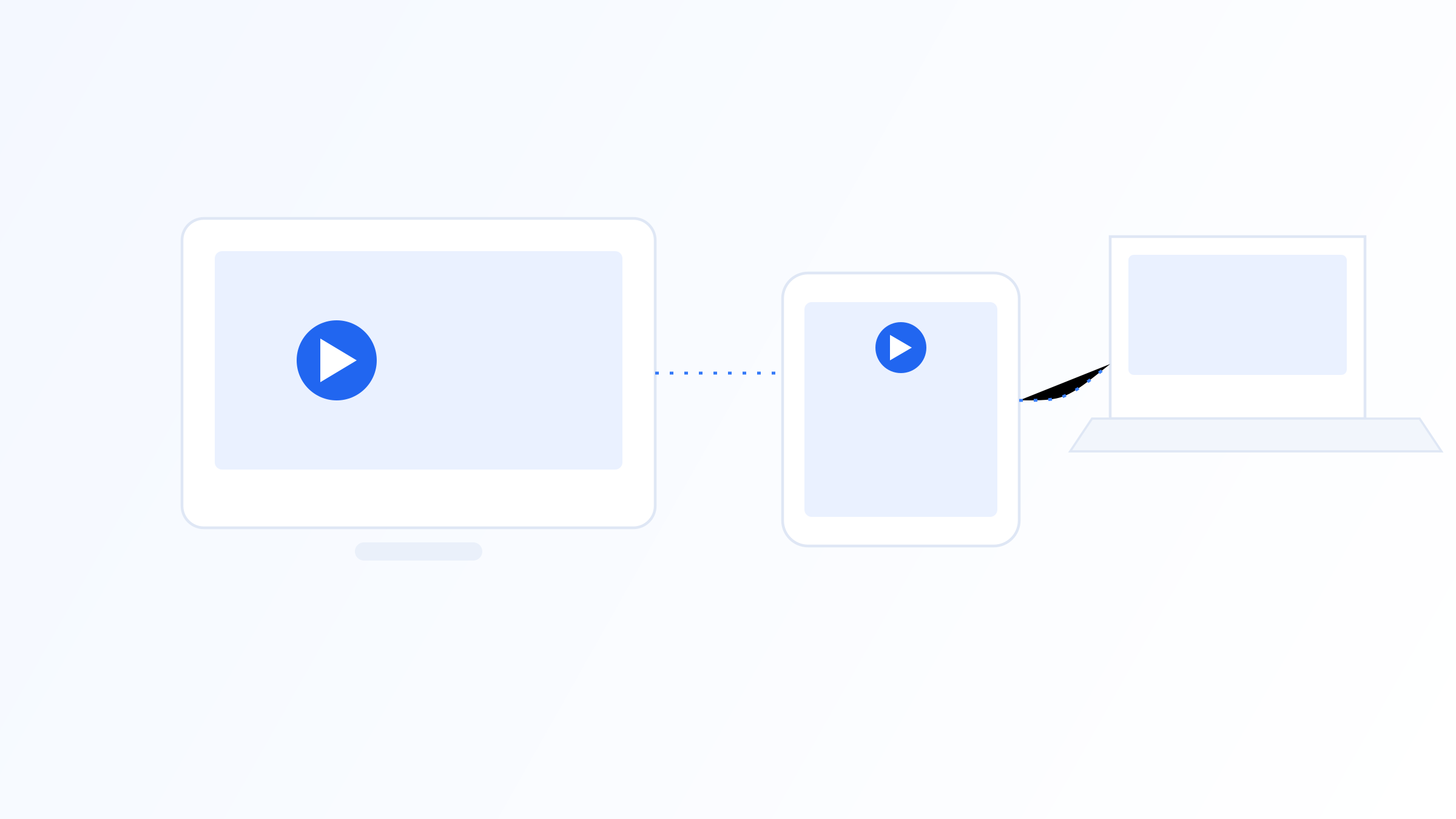
In the overwhelming majority of home IPTV setups, HDMI's role is simple: it connects the device running your IPTV player app, a streaming box, a smart TV's built-in hardware, or a media player like a Fire TV Stick, to your television. The IPTV player app handles receiving and decoding the stream over your internet connection, and HDMI carries the resulting decoded video and audio the short distance to your TV for display.
This is true whether you're using a dedicated streaming box, a smart TV with a built-in IPTV app, or a phone connected to a TV through an HDMI adapter or a casting device. In all these cases, HDMI's job is the same: carry a fully processed signal a short distance, not transmit anything over the internet itself.
It's worth noting that some streaming devices output over HDMI at a fixed resolution regardless of the source stream's actual resolution, upscaling or downscaling as needed, while others pass through the native resolution directly. This distinction can affect perceived picture quality even when the underlying stream itself is identical, so it's worth checking your device's output settings if picture quality seems inconsistent.
Smart TVs vs. External Devices
Some smart TVs run IPTV player apps natively, which means the app and the display are part of the same device, and HDMI isn't involved at all for that use case. Other setups use an external device, a streaming box or stick, connected to a regular or smart TV via HDMI, with the external device handling the IPTV app while the TV simply displays whatever comes through the HDMI input.
External devices are often preferred because they can be replaced or upgraded independently of the TV itself, and they tend to offer more consistent app support and updates than the built-in app stores on many smart TVs, which vary widely in how long they continue receiving updates.
There's also a middle option worth mentioning, some smart TVs support installing additional apps beyond their default selection, effectively blurring the line between a fully external device and a purely built-in one. Whether this is available, and how well it performs, varies significantly by TV manufacturer and how actively that manufacturer maintains its own app platform.
HDMI as a Source for IPTV, Briefly
There's a less common but related scenario: using HDMI as an input, feeding a source like a camera or a local broadcast box into an encoder that converts the signal into an IPTV stream. This is typically relevant to businesses, venues, or advanced home setups distributing local content over an internal network, rather than typical home viewing setups.
This process, capturing an HDMI signal and encoding it into a deliverable IP stream, is a deeper technical topic on its own, involving encoding hardware, codec choices, and network delivery protocols. It's worth knowing this use case exists, but it's a fundamentally different setup than the standard scenario of using HDMI simply to connect a streaming device to a TV.
For anyone curious about pursuing this kind of setup, it generally starts with a capture device that accepts HDMI input and outputs digital data an encoder can process, followed by encoding software or hardware that compresses that data into a streamable format. This is a meaningfully different project than simply setting up IPTV for personal viewing, and it's worth researching the encoding side specifically before investing in hardware.
Practical Setup Considerations
For most people setting up IPTV, the practical HDMI-related considerations are straightforward: make sure your streaming device supports the HDMI version needed for your desired resolution, HDMI 2.0 or later for reliable 4K, for example, use a cable rated for the bandwidth you need, and connect to an HDMI input on your TV that supports the features you want, like HDR passthrough if that matters to you.
Beyond that, HDMI itself rarely needs troubleshooting for IPTV specifically, if you're having streaming issues like buffering or poor quality, the cause is almost always related to your internet connection, your IPTV player app, or your playlist source, not the HDMI connection carrying the final picture to your screen.
If you're connecting multiple HDMI devices to a single TV, an HDMI switch or an AV receiver with multiple inputs can help manage cable clutter and simplify switching between sources, though this adds another link in the chain that's worth accounting for if you ever need to troubleshoot a picture or sound issue. Keeping the signal path as simple as possible generally makes troubleshooting easier when something does go wrong.
When Something Looks Wrong
If your screen shows no signal at all, the issue is almost certainly HDMI-related, a loose cable, an incorrect input selected on the TV, or a cable that doesn't support the resolution being sent. These are worth ruling out first since they're usually the simplest fixes.
If the screen shows a picture but the IPTV content itself won't load or keeps buffering, the issue lies upstream of HDMI entirely, most likely your internet connection, the app, or the playlist source. Keeping this distinction in mind before troubleshooting saves time, since the two categories of problems have almost nothing in common in terms of how you'd fix them.
Cable length and quality can also matter more than people expect for longer HDMI runs, particularly at 4K resolutions, since signal degradation over a long, poorly shielded cable can cause intermittent dropouts that get mistaken for a streaming problem. Swapping in a shorter, higher-quality cable is a simple troubleshooting step worth trying before assuming the issue is with your connection or app.
HDMI and IPTV work together in most home setups, but they handle entirely different jobs: IPTV delivers content over the internet, and HDMI carries the already-decoded video and audio the short distance from your streaming device to your TV. Understanding this separation clarifies where to troubleshoot when something goes wrong, streaming issues point to your connection or app, while a blank screen or signal issue points to your HDMI setup. For most viewers, a decent HDMI cable and a reliable IPTV player app are all this part of the setup really requires. Getting this part right is rarely complicated once you understand what each piece of the chain is actually responsible for.
Related on our site
Further reading
Quick FAQ
Does HDMI carry the internet connection for IPTV?
No. HDMI only carries already-processed video and audio a short distance between two nearby devices, like a streaming box and a TV. The actual internet connection and stream delivery happen separately, over your Wi-Fi or ethernet connection, before the signal ever reaches the HDMI cable.
Do I need a special HDMI cable for IPTV?
Not a special one, but the cable should support the resolution and features you want. For reliable 4K playback, look for a cable rated for HDMI 2.0 or later. For most standard and HD content, any properly functioning HDMI cable is sufficient.
Why does my picture look fine but my IPTV stream keeps buffering?
This points to your internet connection, your IPTV player app, or your playlist source, not HDMI. Since HDMI only carries the already-decoded signal to your screen, buffering happens upstream of that connection, during the actual streaming and decoding process.
Can I use HDMI to turn a local video source into an IPTV stream?
Yes, but this requires additional encoding hardware or software beyond a simple HDMI connection, it's a more advanced setup typically used by businesses or venues distributing local content over a network, rather than something involved in typical home IPTV viewing.
Ready to set up your own IPTV player?
View Pricing PlansReminder: use only legally licensed playlists and content sources. See our Legal & Responsible Use FAQ.