How to Choose the Best IPTV App for Your Device
Most comparisons of IPTV apps talk about features in the abstract, but the practical reality is that your device narrows the field first. An app with a great interface is useless if it is not available on your Fire TV, and a Smart TV's limited app store can shape which options you even have access to before features enter the conversation at all. Even among apps that technically run on your device, real-world performance can differ enormously depending on how well the app was optimized for that specific hardware.
This guide walks through the major device categories and what to check for on each, since compatibility and performance both vary more by platform than most feature comparisons account for. Working through your own device first, before comparing feature lists, will save you from evaluating apps that were never a realistic option to begin with.
Android and Fire TV Considerations
Android and Fire OS, which is Amazon's Android fork used on Fire TV devices, run the widest range of IPTV apps since both support sideloading apps outside their official stores. This gives you more choice but also means checking an app's source carefully, since not everything distributed as an APK file is maintained or safe to install.
Performance on these devices depends heavily on hardware decoding support and how much RAM the specific model has. Older or budget Fire TV Sticks can struggle with apps that lean on software decoding, so if you are on entry-level hardware, prioritize apps known to be lightweight over ones with heavy visual interfaces. Checking the specific RAM and processor of your device model before assuming an app will run smoothly is a worthwhile few minutes, since entry-level and higher-tier versions of the same product line can perform very differently.
It is also worth checking whether an Android app is distributed through the Google Play Store or Amazon Appstore versus only as a standalone APK file. Store-distributed apps generally receive automatic updates and have passed a baseline review, while a standalone APK requires you to manually check for and install updates yourself, and to be more careful about verifying the source before installing it.
iOS and Apple TV Considerations
Apple's ecosystem is more locked down, meaning IPTV apps on iOS and tvOS generally come only through the App Store, which limits selection but also means the apps you find have passed a baseline review process. Check specifically whether an app supports AirPlay if you want to send streams to a separate TV, since not all IPTV apps implement this consistently.
Playback performance on Apple hardware tends to be more consistent across app choices than on Android, since the range of device models is narrower and Apple's hardware decoding is fairly uniform across recent devices.
One tradeoff worth knowing about upfront is that Apple's App Store review process can mean IPTV player apps update on a slightly slower cadence than their Android counterparts, since each update has to pass review before it becomes available. This rarely causes major issues but is worth keeping in mind if you notice a bug that seems to persist for a while after being reported.
Smart TV Native Apps vs Sideloading
Smart TVs running platforms like Samsung's Tizen or LG's webOS often have a much smaller selection of native IPTV apps in their built-in stores compared to Android-based systems. Where a native app exists, it usually offers the smoothest experience since it is built specifically for that TV's remote and interface conventions.
Where no suitable native app is available, many people connect an external streaming device like an Android TV box or a Fire TV Stick to the TV instead, effectively working around the TV's own limited app ecosystem rather than trying to force compatibility with the television's operating system directly.
If your Smart TV does support sideloading, be aware that the process and reliability vary a lot by manufacturer, and a sideloaded app on a TV operating system will generally not receive automatic updates the way a store-installed one would. This makes an external streaming device the more maintainable option for most people, even when sideloading directly onto the TV is technically possible.
Windows, Mac, and Web Considerations
On desktop, IPTV apps typically fall into two categories: dedicated installed applications and web-based players accessed through a browser. Installed apps generally offer better performance and more complete feature sets, including EPG support and multi-profile management, while browser-based options are convenient for quick access without installation but may lack some organizational features.
If you split your viewing between a desktop and a TV device, check whether the app you are considering has both a desktop and TV version built by the same developer, since that usually means a more consistent experience and shared account settings between the two.
Browser-based players also depend heavily on which browser you use, since HEVC playback support in particular is inconsistent across browsers due to licensing differences around the codec. If a web player struggles with a stream that plays fine in a native app, checking codec support in your specific browser is a reasonable next troubleshooting step.
Syncing Across Devices
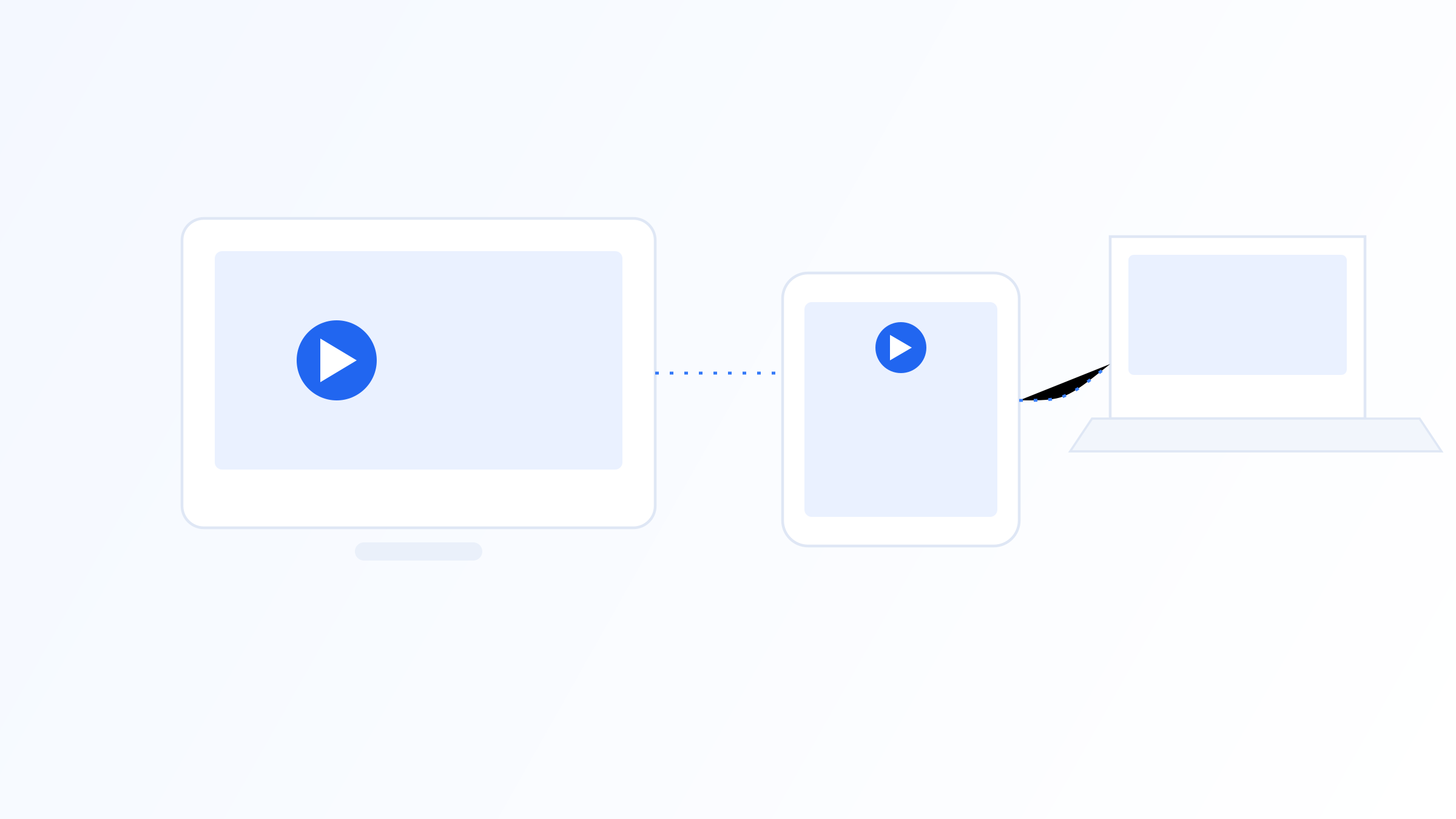
If you use more than one device regularly, look specifically for apps available across all of them from the same developer, since this is what makes syncing favorites, playlists, and settings possible. IPTV Iconic, for example, offers apps across Android, iOS, Fire TV, and desktop, which lets a single playlist and set of preferences carry over regardless of which device you pick up.
Where cross-device syncing is not built in, you can still replicate a setup manually by re-adding the same playlist URL or Xtream Codes login on each device, though you will need to rebuild things like favorites and channel groups separately on each one.
IPTV Iconic addresses this by offering apps across the major platforms under a shared account model, which keeps a playlist and preferences reasonably consistent whether you pick up a phone, a Fire TV remote, or a laptop, rather than treating each installation as a completely separate setup.
Remote Control and Interface Design
On TV-based devices specifically, how well an app maps to the actual remote control you're holding matters more than it might seem from a features list. Some apps are clearly designed touch-first and then awkwardly adapted for a directional remote, resulting in menus that require excessive button presses to navigate, while others are built with TV remotes in mind from the start and support quick shortcuts for things like favorites or channel switching.
This is worth testing directly rather than assuming based on how polished an app looks in a screenshot, since remote usability is one of those details that only becomes obvious once you're actually navigating a large channel list with a standard TV remote instead of a mouse or touchscreen. A few minutes of hands-on navigation, particularly through the EPG grid, will tell you more than any spec sheet.
Text and icon sizing also deserve a closer look on TV-based apps specifically, since content viewed from a couch several feet away needs noticeably larger, higher-contrast elements than the same interface would need on a handheld screen. An app that simply scales down a phone interface for TV, rather than designing specifically for viewing distance, often ends up with channel names or EPG text that are genuinely hard to read from a normal seating distance.
The best IPTV app is the one that actually runs well on the specific device you own, which means device compatibility should narrow your options before features do. Check hardware decoding support on Android and Fire TV, App Store availability on Apple devices, native versus sideloaded options on Smart TVs, and how comfortably the interface handles your remote or touchscreen. If you use multiple devices, prioritizing an app family available across all of them will save you from managing separate setups on each one, and always confirm compatibility directly on your specific device model rather than assuming based on its general platform.
Quick FAQ
Can I use the same IPTV app on my phone, TV, and computer?
Many app developers offer versions across multiple platforms, which lets you use the same playlist and account on each. Availability varies by developer, so check the specific device list for any app you are considering rather than assuming universal support.
Why do some IPTV apps not work well on older Fire TV Sticks?
Older or entry-level streaming devices have limited processing power and RAM, which affects apps that rely on software decoding or heavy interface animations. Lightweight apps with efficient hardware decoding tend to perform better on lower-end hardware, while heavier apps can lag or overheat the device during longer sessions.
Are there official IPTV apps on Smart TV app stores?
Selection varies by TV brand and platform. Some Smart TV operating systems have a limited number of native IPTV apps available, which is why many people instead connect an external Android TV or Fire TV device for a wider app selection.
Is a web-based IPTV player as good as an installed app?
Web players are convenient since they need no installation, but installed apps typically offer more complete features like EPG support, favorites, and multi-profile management. Which is better depends on whether you prioritize convenience or a fuller feature set, and on how well your specific browser handles the codec involved.
Ready to set up your own IPTV player?
View Pricing PlansReminder: use only legally licensed playlists and content sources. See our Legal & Responsible Use FAQ.